Install and set up
Install
Use the install links for the current version (1.6):
- Sandbox and scratch orgs: https://test.salesforce.com/packaging/installPackage.apexp?p0=04tPg000000af9VIAQ
- Production and Developer Edition orgs: https://login.salesforce.com/packaging/installPackage.apexp?p0=04tPg000000af9VIAQ
Upgrading from 1.3 or 1.4? Install 1.5 first; 1.6 removes a component those versions still reference and the installer refuses the direct jump.
Install links for previous versions are in the release notes.
Post-installation steps
Open the Fundraising Subledger app from the App Launcher and navigate to the Fundraising Subledger Settings tab.

Accounting period settings
In Accounting Period Settings, set the default intervals for Accounting Periods, as well as the default naming convention for system-generated periods.
If the interval is set to Weekly, select the day of the week that Accounting Periods will begin on. If the interval is set to Monthly, select the day of the month that Accounting Periods will begin on.
Use the Accounting Period Name Format field to set the default naming convention for Accounting Periods generated by the system (manually created Accounting Periods will not be renamed). To include dynamic date values, use the {!startDate} and {!endDate} merge fields.
Examples:
// Frequency = 'Monthly'
// Date Format = 'MMMM yyyy'
Accounting Period - {!startDate} // --> Accounting Period - July 2024

// Frequency = 'Weekly'
// Date Format = 'M/d/yyyy'
{!startDate} - {!endDate} NPSP Activity // --> 7/1/2024 - 7/8/2024 NPSP Activity

// Frequency = 'Daily'
// Date Format = 'yyyy-MM-dd'
{!startDate} Accounting Period // --> 2024-07-01 Accounting Period
Accounting state mappings
Use the Accounting State Mappings tab to map Opportunity Stages to Accounting States.
To recognize when a change in opportunity stage should result in new journal entries, all Opportunity stages should have a corresponding accounting state. Passing from uncommitted to committed or finalized should create new journal entries. Passing from committed or finalized to uncommitted should create new reversal journal entries.
- Uncommitted is revenue that has not yet reached a committed stage and so has not yet been recognized.
- Committed indicates that the revenue is expected to be received. This revenue is recognized and accounts receivable is debited.
- Finalized indicates that all expected payments have either been paid or written off (or never recorded).
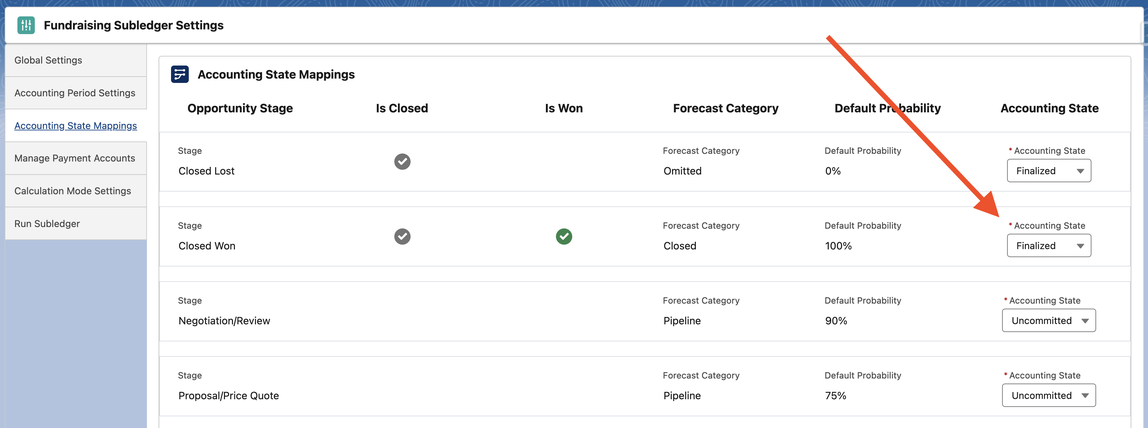
After adding new Opportunity Stages, be sure to come back to the Fundraising Subledger Settings to map the new value. Example mappings are in the journal entry scenarios.
Default accounts
The Default Accounts tab holds the two accounts the subledger falls back to. The receivables account carries the open amount of committed gifts allocated to GAUs that have no receivable GAU of their own, and any unallocated amount. The write-off account receives written-off payments whose GAU has no write-off GAU of its own. Click Edit GL Account to set the GL Code and GL Account Name of either account. Both accounts must stay active.
Manage payment accounts
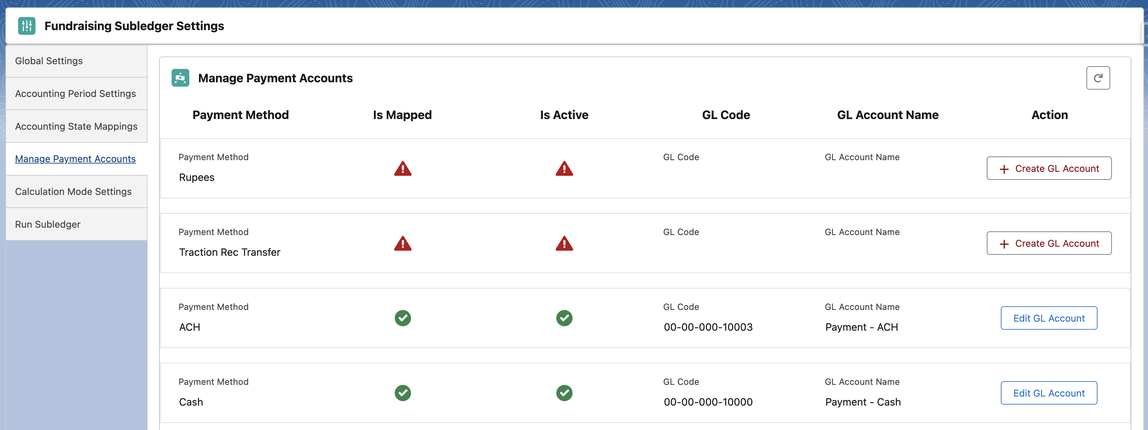
The Manage Payment Accounts tab allows you to map active picklist values in the Payment Method field on the Payment object to a GL account. Click Edit GL Account to update the GL Account for an existing Payment Method value. Click + Create GL Account to create an account for an unmapped Payment Method value.
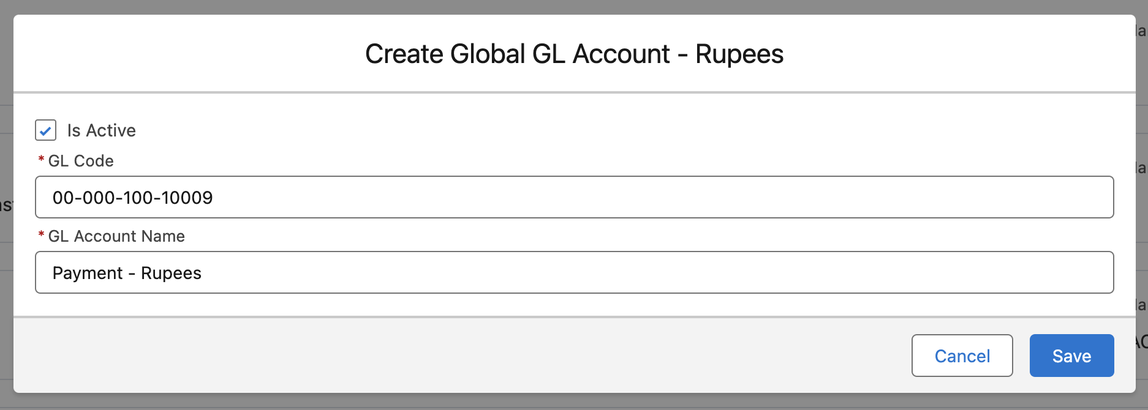
Enter the details for the GL Account and mark it as Active.
Several payment accounts (or GAUs) may share a GL Code. The subledger treats each GL Code and GL Account Name pair as its own account: a journal entry takes its name from the payment account or GAU that produced it, two payments through different accounts on one code get separate entries, and moving a payment between accounts on the same code reverses one and debits the other.
Calculation mode settings
Journal entries are calculated either in real time, as fundraising activity is recorded in NPSP, or by a scheduled accounting job that processes the activity queued since its last run. From the Calculation Mode Settings tab, select the option that works best for your organization, based on accounting need, data volume, and existing real-time automation.
The scheduled job
In scheduled mode the accounting job runs once a day, at a time you choose, and the tab shows whether it is scheduled and when it next runs. To switch to scheduled mode, or to change the time:
- Click Edit.
- Set Calculation Mode to Scheduled. The time input appears, holding the saved time; the job runs every day at 1:44 AM until you change it.
- Set the time. It is read in your own time zone.
- Click Schedule Job. The settings are saved, and the job is scheduled at that time; a job already scheduled is moved onto the new time.
The button reads Save instead when the change needs no scheduling, such as switching back to Real-time. Switching back leaves a scheduled job in place; it has nothing to process in real-time mode, and Abort Job stops it whenever you like. Schedule Job on the tab itself schedules the job on the saved time without opening the form, for an org whose job was aborted or never scheduled.
How journal entries are dated
In real-time mode, journal entries are dated the day the activity is recorded. In scheduled mode, each opportunity records the day of the latest change that queued it, in the Journal Entry Queued Date field, and the job dates that opportunity's entries to that day. So an overnight job dates yesterday's gifts to yesterday, and an hourly job dates this morning's gifts to today. Run Subledger dates entries the same way. Opportunities queued before this field existed are dated to the day before the scheduled job runs, or to the day of a manual run.
Global settings
From the Global Settings tab, choose a Default Record Owner and click Save. Only active users are listed, with their username shown to tell similar names apart. This user owns the journal entries and system-generated accounting periods the subledger creates, so pick an integration or administrator user that will stay active.
Then click Enable Subledger. Journal Entries will now begin calculating for all newly recorded activity.
Additional configuration
Assign or modify page layouts
- Opportunity: assign
Subledger_Opportunity_Record_Page, or add the Committed Date, Queued for Journal Entry Creation, Journal Entry Queued Date, and Do Not Create Journal Entries fields. - General Accounting Unit: add the GL Code, Receivable GAU and Write-Off GAU fields.
- Payment: assign
Subledger_Payment_Record_Page, or add the stock information fields: Broker Fee, Number of Shares, Price Per Share, Stock Notes, Stock Sale Amount, Stock Sale Date, Stock Symbol.
Configure GAUs
- Add GL Codes to GAUs.
- Optionally set a GAU's Write-Off GAU: the GAU whose GL Code and name are debited when payments allocated to it are written off.
- Optionally set a GAU's Receivable GAU: the GAU whose GL Code and name are debited for the open amount of committed gifts allocated to it.
Receivable GAUs
While a gift is committed, its open amount (the gift amount minus paid and written-off payments) is a receivable. The subledger splits that open amount across the gift's allocations in proportion to their amounts. Each allocation's share is debited to its GAU's Receivable GAU, or to the default receivables account when the GAU has none. Any amount not covered by allocations also goes to the default receivables account. As payments are recorded, each fund's receivable is released in the same proportion.
For example, a $1,000 pledge allocated $600 to a Scholarship Fund (whose Receivable GAU is "Pledges Receivable - Scholarships") and $400 to General Operations, with $300 paid so far, has an open amount of $700: $420 is debited to Pledges Receivable - Scholarships and $280 to the default receivables account. Shares are rounded to the cent and always add up to the open amount.
A Receivable GAU is an ordinary active GAU with a GL Code, so name it clearly (for example "Pledges Receivable - Scholarships") so that fundraisers do not allocate gifts to it.
Changing a GAU's Receivable GAU, Write-Off GAU, GL Code or name recalculates the committed gifts allocated to it: in real-time mode their journal entries are updated by a background job within a few minutes; in scheduled mode they are queued for the scheduled job. After upgrading, existing open receivables stay on the default receivables account until you set a Receivable GAU on their funds.
Enable payment allocations, default allocations, and automatic payments in NPSP
Go to Setup → Custom Settings → Allocation Settings:
- Check Payment Allocations Enabled.
- Check Default Allocations Enabled.
- Set the Default General Accounting Unit to the default GAU record id.
Assign permission sets to users
- Fundraising Subledger User: view only access to journal entries.
- Fundraising Subledger Admin: allows the user to perform manual adjustments and manage/close accounting periods.
See User security for what each permission set grants.
Going live with the Fundraising Subledger
Before going live with the Fundraising Subledger, a cut-off date should be established to begin recording financial activity.
Identify any open receivables in the system prior to this cut-off date. These opportunities should have journal entries created for all historical activity and assigned to a pre-launch, closed accounting period (or a collection of closed accounting periods). This way, the subledger can make accurate calculations when new activity or payments are recorded.
All other opportunities prior to the cut-off date should have the Do Not Create Journal Entries flag set to true to keep any future edits from generating a recalculation.