1.10
Released 2026-03-30.
Version 1.10 offers support for Flow screens, App Pages, and Experience Cloud pages. Alerts and confetti can also be disabled for a component instance. Setup for each page type is in Page contexts.
New
Additional targets for the Highlight Badges component
Highlight Badges can now be displayed on more than just record pages. Display badges on:
- Flow Screens
- App Pages
- Experience Cloud pages
Flow screens
Add Highlight Badges to Flow screens and provide a record ID from Flow context.
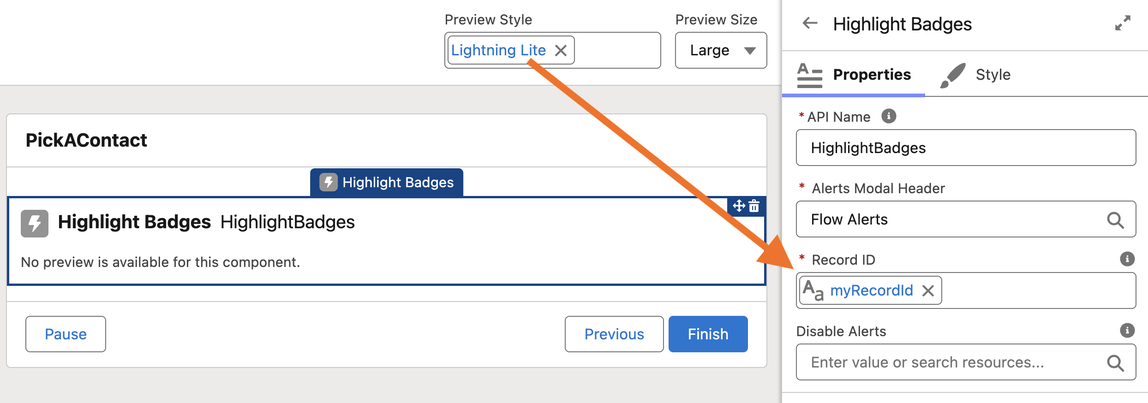
If alerts and confetti don’t make sense for this context, set Disable Alerts to True.
App pages
Highlight Badges on App Pages are displayed based on a record ID provided via a URL parameter. When adding the Highlight Badges for App Pages component to an App Page, set the Record ID URL Parameter in Lightning App Builder.
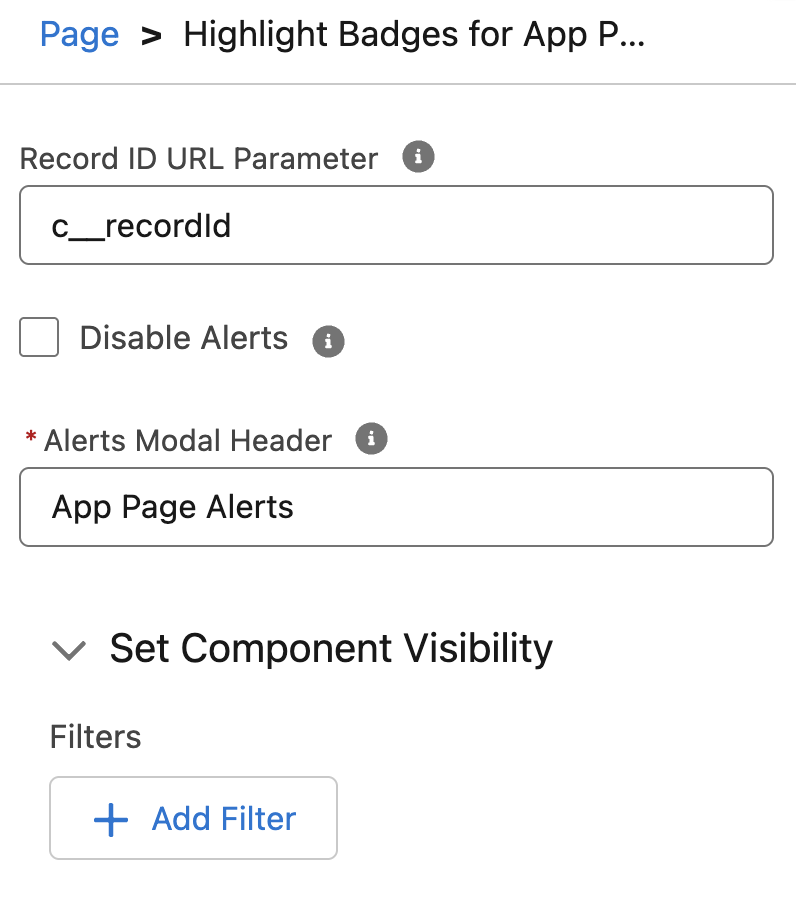
Provide the name of your URL parameter to the Record ID URL Parameter property. In this example, the ID is passed to the c__recordId parameter.
e.g. https://mysite.lightning.force.com/lightning/n/my_app_page?c__recordId=001000000000000AAA
If alerts and confetti don’t make sense for this context, check the Disable Alerts checkbox.
Experience Cloud
Add Highlight Badges to Experience Cloud pages to display highlights to external users. There are five supported ways to define the Display Record for the component.
- Page Context
- URL Parameter
- Current User
- Current User’s Account
- Current User’s Contact
NOTE: Highlight Badge Definitions must be marked as Visible to External Users to display to authenticated community users, and both Visible to External Users and Visible to Guest Users to display to unauthenticated guest users.
Page Context
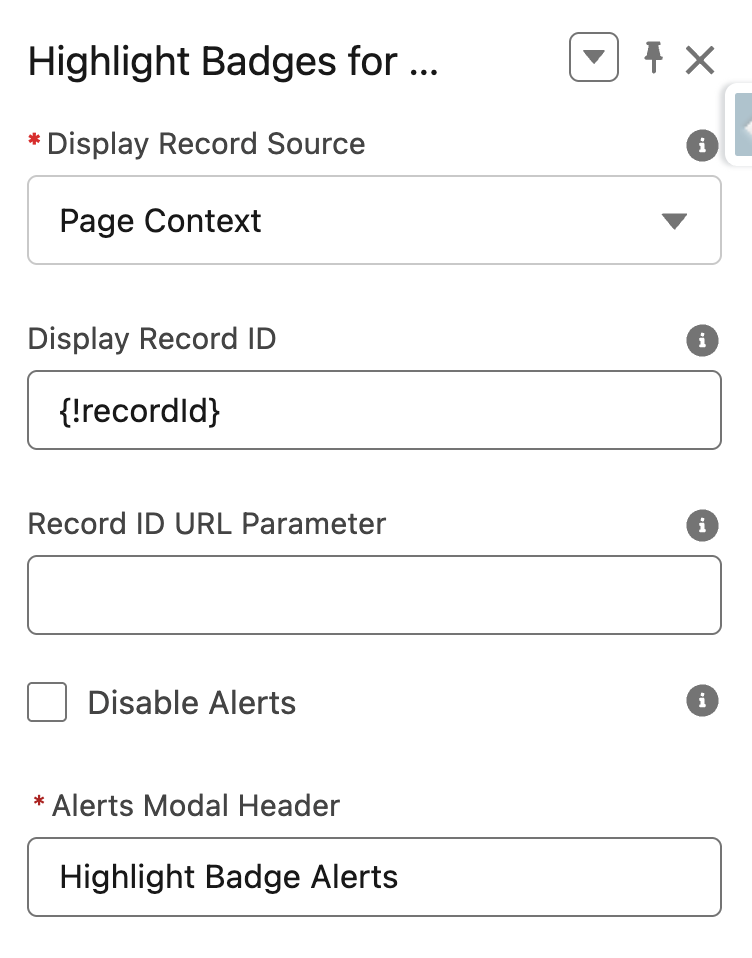
Use the Display Record Source of “Page Context” to pass a page context value to the component. Enter this value in the Display Record ID.
For example, when displaying the component on an Object Record Page, use {!recordId} to pass in the Record ID of the context record.
URL Parameter
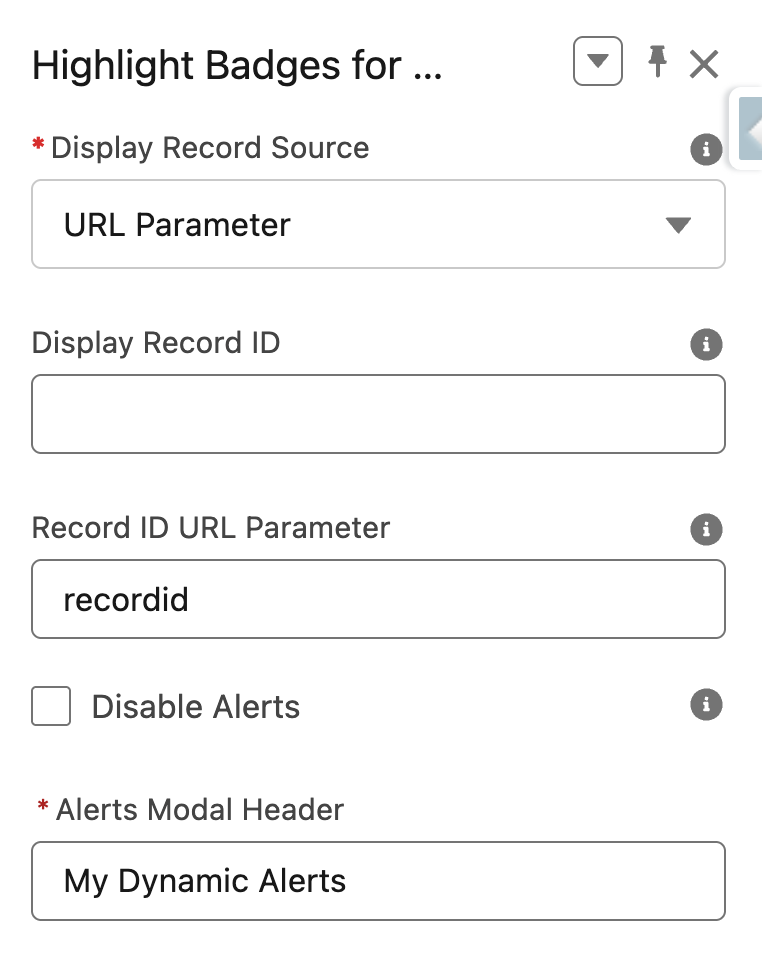
Use the Display Record Source of “URL Parameter” to pass the Display Record ID through a URL parameter.
Define the name of the parameter in Record ID URL Parameter.
Current User
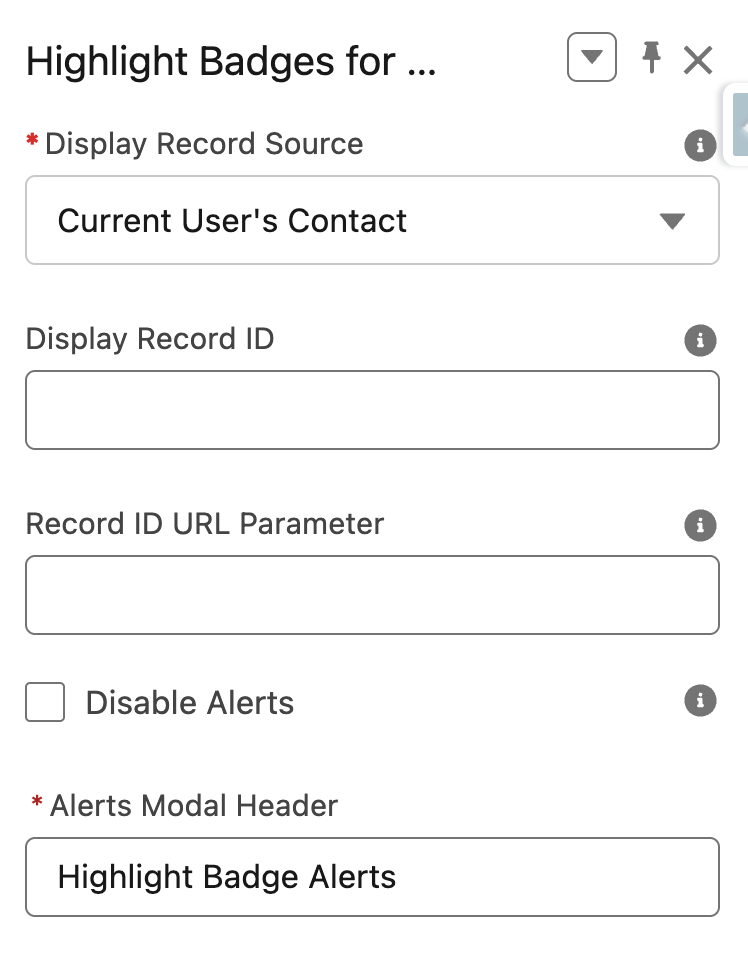
For authenticated users, you can choose to display badges based on the current user, the current user’s contact, or the current user’s account.
Set the Display Record Source to the desired setting to set this as the Display Record.
Disable alerts
Embedded in an app page or screen flow, alerts and confetti may not make sense for the context. Set the Disable Alerts flag when adding the Highlight Badges component to a lightning page or Flow screen to ensure these are not displayed. Badges still appear and the details modal is still presented when a badge is clicked.