Advanced configuration
This section breaks down the way queries are constructed from Highlight Badge Definitions. To create badges unsupported by the Guided Setup wizard, set these values directly from a Highlight Badge Definition record page.
Definitions
The Display Object represents the API name of the sObject type that the highlight badge should appear on.
The Source Object represents the API name of the sObject type to be placed in the FROM statement of the SOQL query.
The Common Ancestor Object represents the API name of the object that the Display Object and Source Object have common relationships to.
The Display to Ancestor Path represents the API path from the Display Object to the Common Ancestor Object.
The Source to Ancestor Path represents the API path from the Source Object to the Common Ancestor Object.
Merge fields
Merge fields are supported in badge labels and alert messages. To display a field value, enclose it in {!fieldApiName}. Merge fields must be fields on the Source Object.
{!Name}
Bind variables and subqueries in filter criteria
When a query is constructed from a badge definition, the WHERE clause first filters on the Source to Ancestor Path, then on any provided filter criteria. The query for a badge indicating a contact’s birthday might look something like this:
Filter Criteria: Birthdate = TODAY
SELECT Id, Birthdate
  FROM Contact
 WHERE Id = :ancestorId AND Birthdate = TODAY
Likewise, the query for a badge indicating the primary contact for an account might look something like this:
Filter Criteria: Is_Primary__c = true
SELECT Id, Is_Primary__c
  FROM Contact
 WHERE AccountId = :ancestorId AND Is_Primary__c = true
When setting filter criteria, you have access to the following bind variables:
- recordId (Display Object record id; displayRecordId is accepted as an alias for definitions written before version 1.12)
- ancestorId (Common Ancestor Object record id)
- userId (running user id)
Reference these as bind variables to build more complex queries. Taking the last example, the filter criteria could be amended to only show the primary contact if it is not the current contact:
Filter Criteria: Is_Primary__c = true AND Id != :recordId
SELECT Id, Is_Primary__c
  FROM Contact
 WHERE AccountId = :ancestorId AND Is_Primary__c = true AND Id != :recordId
Taking the birthday example, we might add a subquery to see if the contact has not yet received their free cupcake:
Filter Criteria: Birthdate = TODAY AND Id NOT IN (SELECT Contact__c FROM Free_Cupcake__c WHERE CreatedDate = TODAY)
SELECT Id, Birthdate
  FROM Contact
 WHERE Id = :ancestorId
   AND Birthdate = TODAY
   AND Id NOT IN (SELECT Contact__c FROM Free_Cupcake__c
                   WHERE CreatedDate = TODAY)
To indicate that the running user is the owner of the current contact record:
OwnerId = :userId
SELECT Id
  FROM Contact
 WHERE Id = :ancestorId
   AND OwnerId = :userId
Refresh badges from Flow
There are two invocable actions available for Flow Builder.
- Refresh Highlight Badges
- Fire Confetti
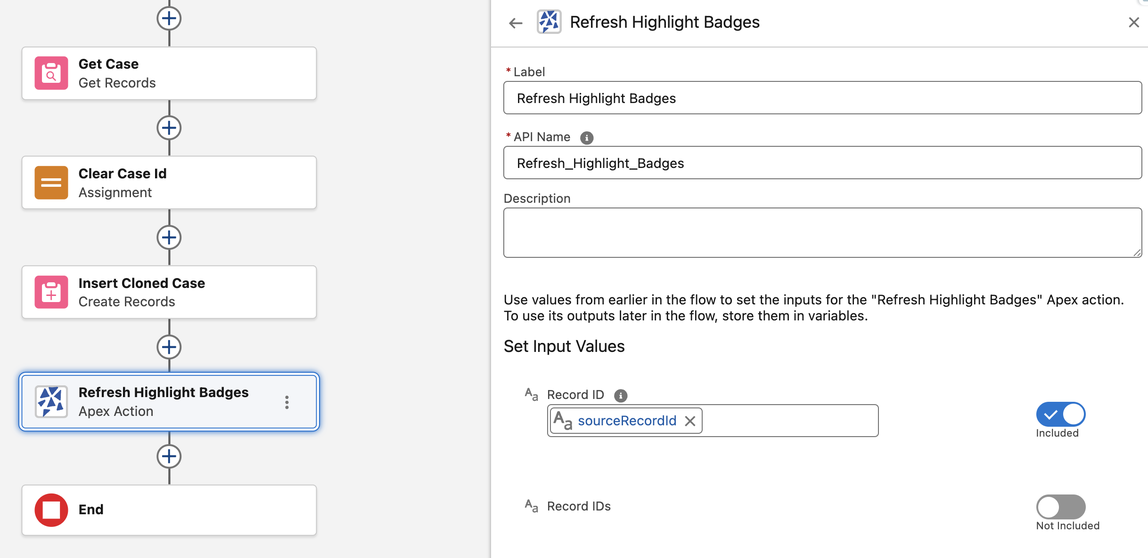
Use the Refresh Highlight Badges flow action to refresh Highlight Badges components that are referencing a provided record id. This could be the display object, or records referenced in any of the active badges. Refreshing the component is especially useful when a flow action could update related data.
Provide either a single record ID or a collection of record IDs.
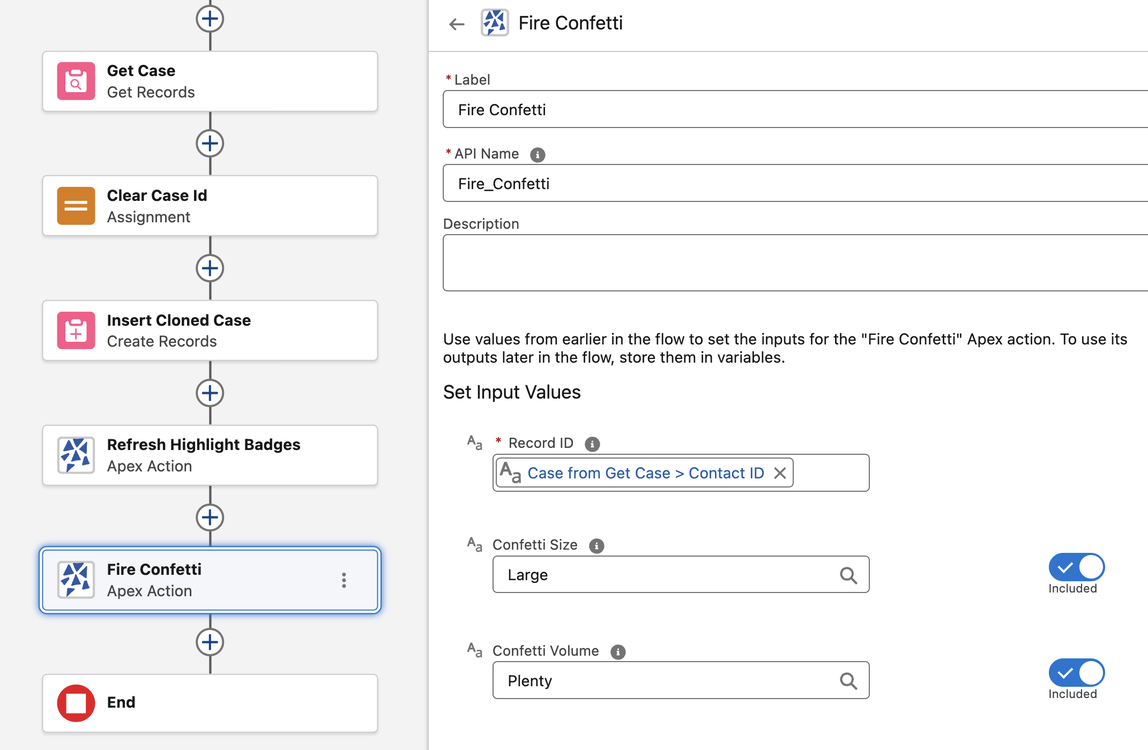
Use the Fire Confetti flow action to throw confetti on a record page with the Highlight Badges component for an important event. Use this often, and always set the size to Large and volume to Plenty. Otherwise you’re not doing it right.
Refresh badges from Apex or platform events
Publish a Highlight Badges Refresh platform event to refresh any Highlight Badges component that is displaying badges for a particular record.
Sample event:
{
    "data": {
        "schema":"Z-Kuci_VJckyprOdQFvWFg",
        "payload": {
            "Record_ID__c":"500DS00000FtKXUYA3",
            "CreatedById":"005000000000000AAA",
            "CreatedDate":"2024-07-27T22:31:14Z"
        },
        "event": {
            "replayId":1800472
        }
    },
    "channel":"/event/Highlight_Badges_Refresh__e"
}
Use Highlight Badges in your own Lightning web components
If Lightning Web Security is enabled, the Highlight Badges component can be instantiated within your own lightning web components. Use the recordId property to pass the Record ID of the Display Record.
<bdgs-highlight-badges record-id={selectedRecordId}></bdgs-highlight-badges>
To re-render badges after changes are made in the parent component, invoke the public refresh() function.
handleRefresh() {
    this.template.querySelector('bdgs-highlight-badges').refresh();
}
NOTE: To instantiate Highlight Badges in a local LWC, Lightning Web Security must be enabled. https://developer.salesforce.com/docs/platform/lightning-components-security/guide/lws-enable.html
Known limitations
- No more than 100 badges can be configured for a particular display object. Additional configurations are ignored and badges will not be displayed.
- Merge fields are only supported on the source object. Cannot traverse to related objects in labels and messages.
- Valid: {!Subject}
- Invalid: {!Account.Name}
- If a user lacks access to any of the returned data, even just a single field, the badge will not be displayed.