Badge actions
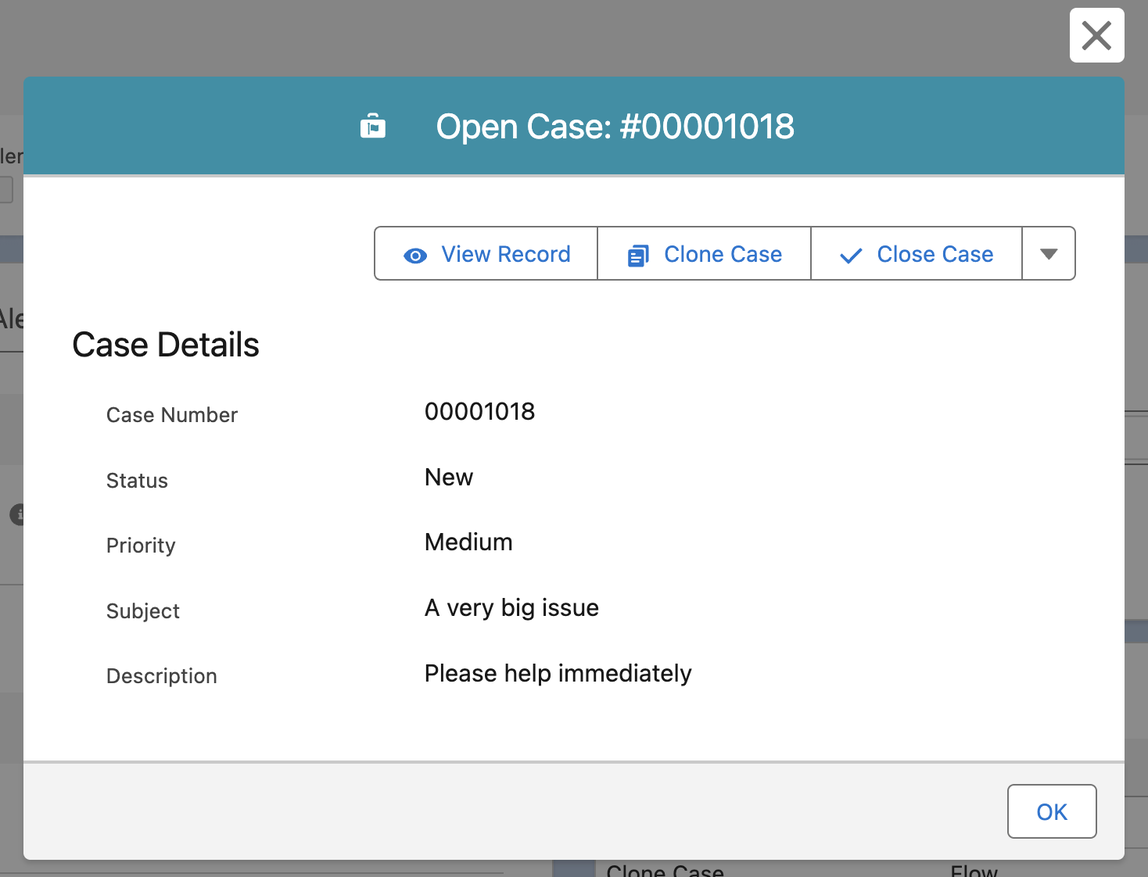
Create Highlight Badge Actions to give the user a way to take action on a particular badge. Actions come in two types:
| Action | Description |
|---|---|
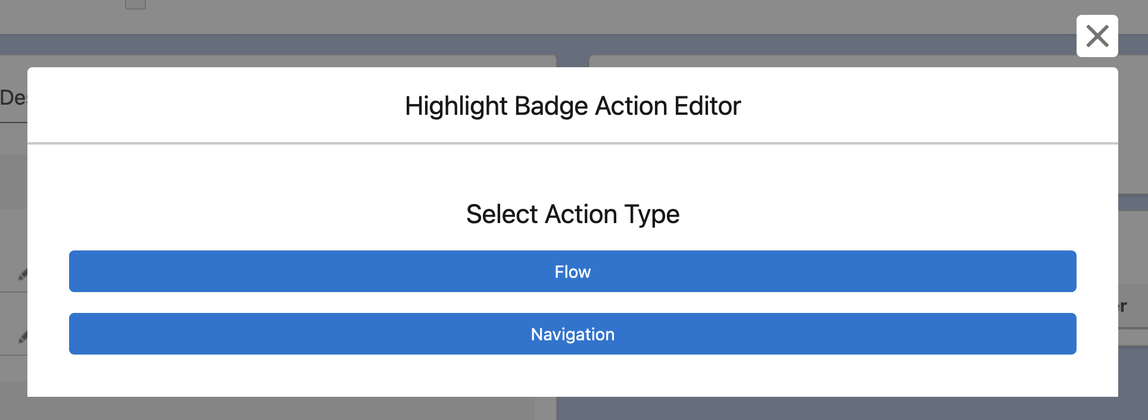
| Navigation | Navigation to the badge's Source Record or to a defined URL |
| Flow | Run a screen flow or autolaunched flow |
Configured actions are available from the badge details modal and the alerts modal.
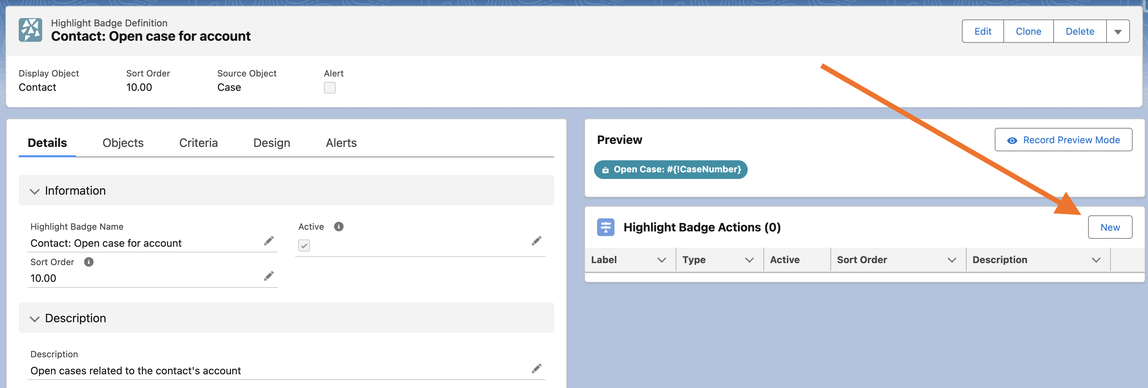
From the Highlight Badge Definition record page, click New in the Highlight Badge Actions Manager.
Select an Action Type.
There are three tabs to configure for each action: Details, Actions, and Button Design.
In the Details tab, give the action a name and description. Optionally, provide a Sort Order to determine where in the list of buttons this action will appear (lowest first, nulls last).
In the Actions tab, configure what the action is going to do.
- For Navigation actions, select the type of navigation and the destination. If choosing Source Record, the button will navigate the user to the Source Record’s record page. The button is left out for a System Mode badge whose record the user cannot read.
- For Flow actions, select whether to run an Autolaunched Flow or a Screen Flow, then select the Flow that should be run.
- Autolaunched Flows run immediately and if run without error, display a generic success message to the user. If an error is encountered in the flow, the error message is displayed to the user.
- Screen Flows run directly in the modal window. No default success message is shown, so configure your flow to display any confirmation messaging.
When running flows, the IDs of the Display Record and Source Record can be passed into the flow. To do so, include a text variable in your flow with the following name (case sensitive), and mark it as Available for Input:
- displayRecordId
- sourceRecordId
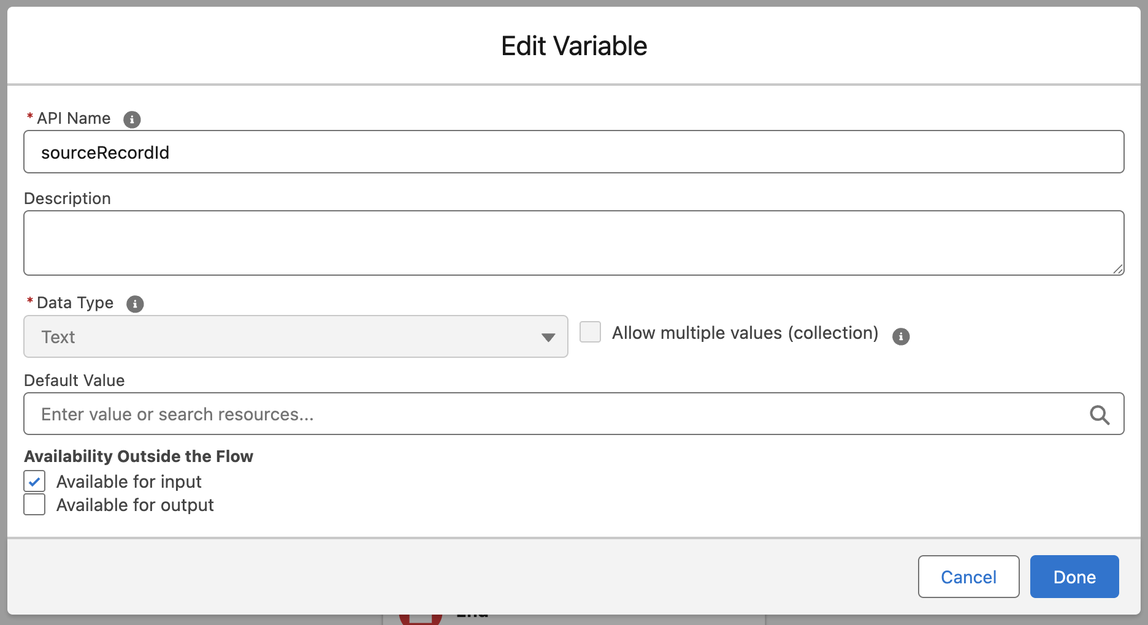
Here’s an example of a flow variable that accepts the Source Record ID.
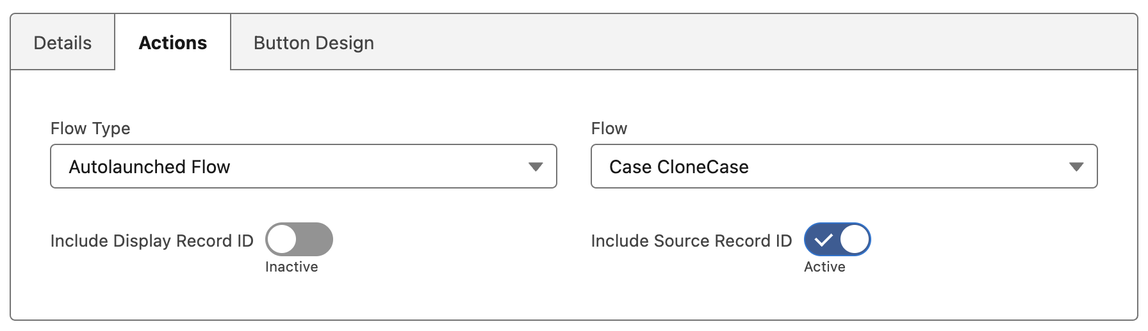
Then ensure that the setting is checked in your Highlight Badge Action.
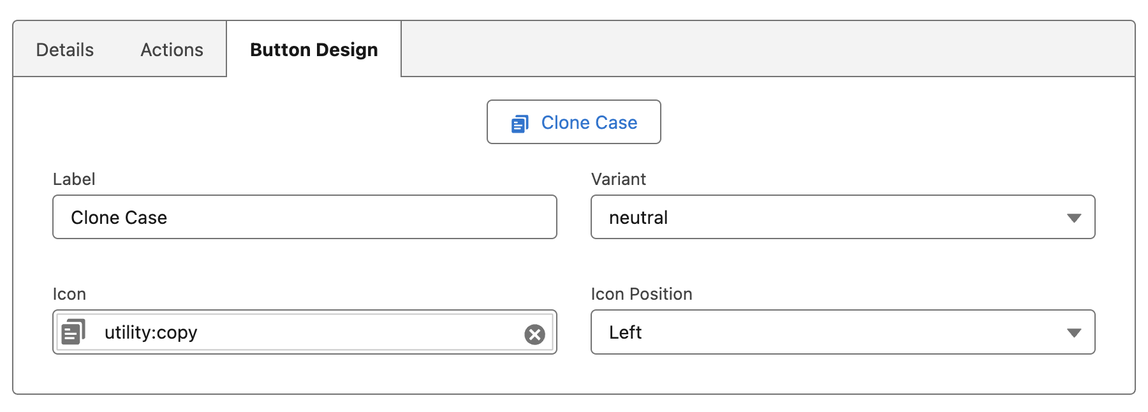
In the Button Design tab, configure the styles for this action’s button. A preview is available to see changes as you make selections.