Build a badge definition
Add Highlight Badges to record pages to give users quick insight into record details or related record information. Configure alerts, run flows, and offer quick navigation to related records.
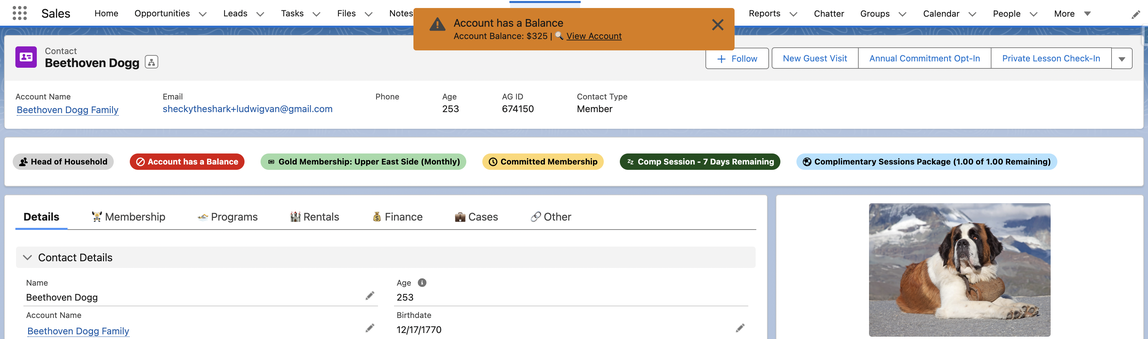
Highlight badges are configured by creating Highlight Badge Definition records.
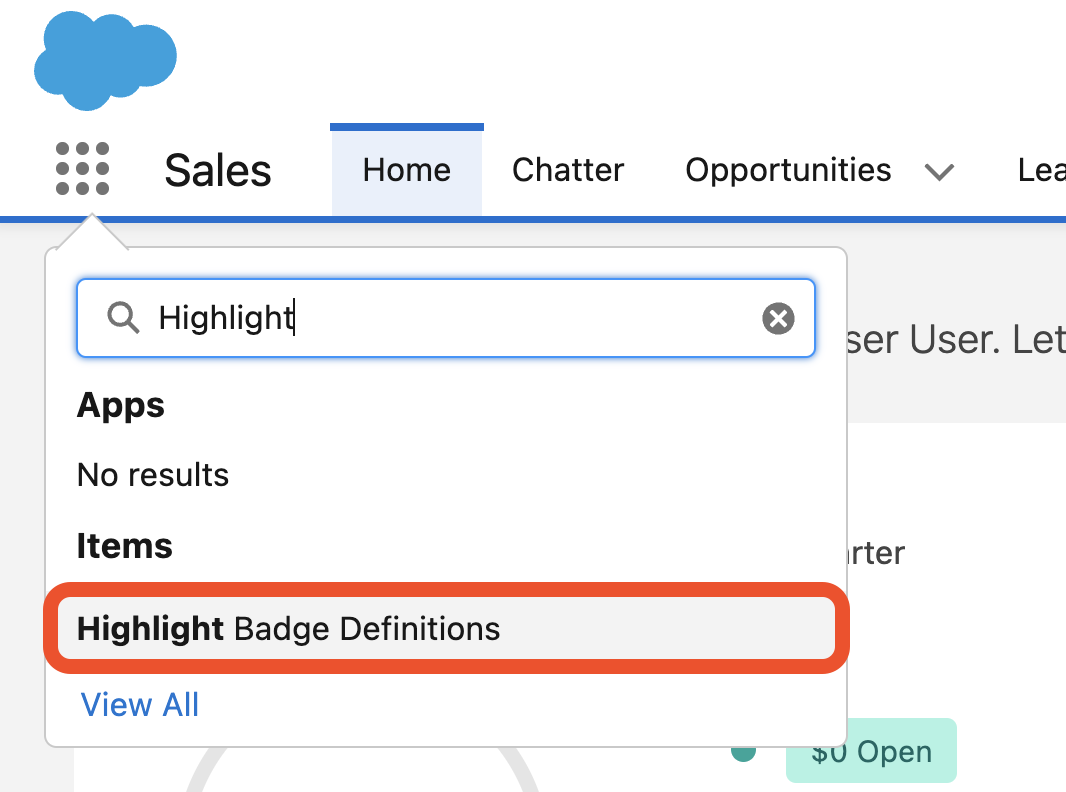
Navigate to the Highlight Badge Definition object.
Click New.

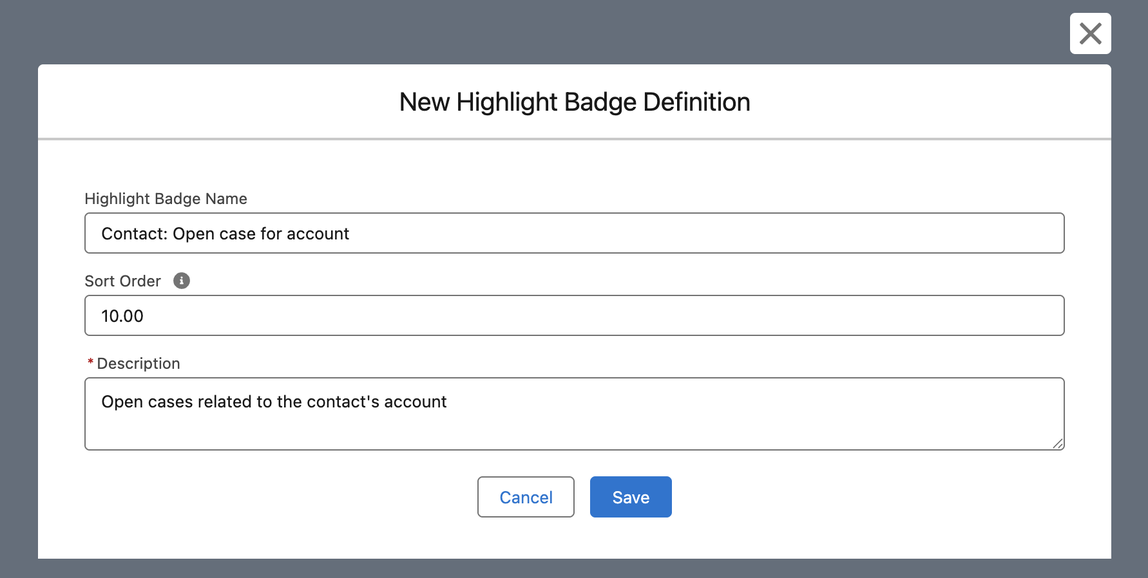
Give your highlight badge a Highlight Badge Name.
Set the Sort Order to determine the priority of these badges in the display component. Lowest values appear first.
Provide a description of the badge.
Click Save.
Details
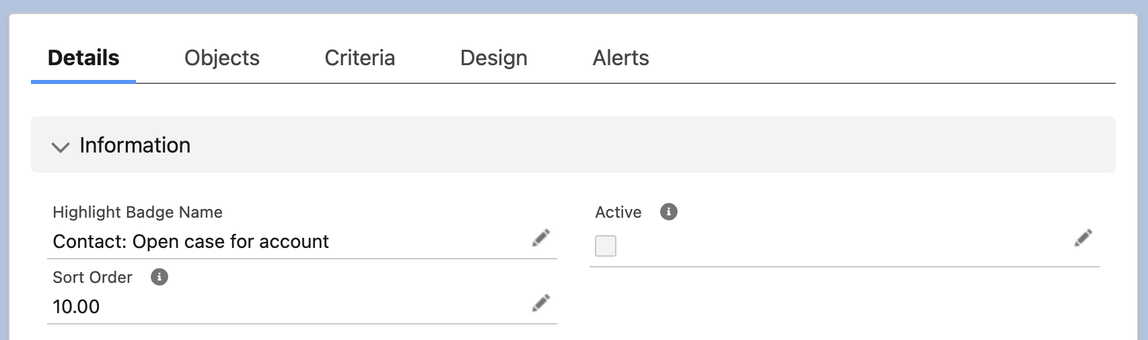
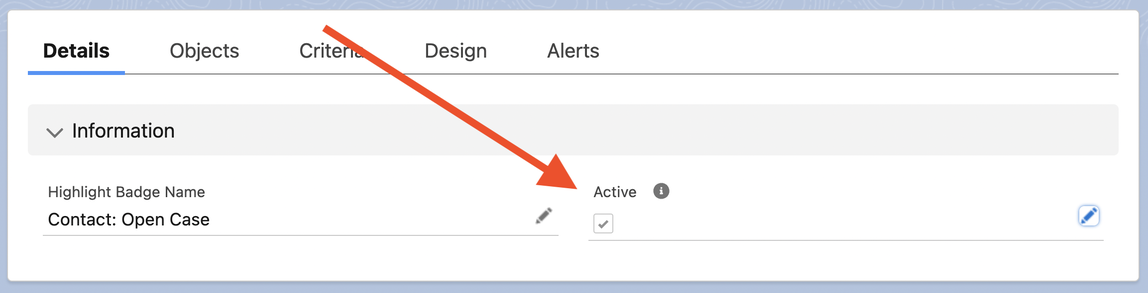
In the Details tab, toggle a highlight badge’s Active checkbox to put it on or off display. A highlight badge definition can only be activated once all core details have been configured.
The Visibility & Access section holds three checkboxes: Visible to External Users and Visible to Guest Users control who sees the badge on Experience Cloud pages, and System Mode shows the badge to users regardless of their access to the source records; see System mode.
Objects
The Objects tab focuses on the relationship between the data of interest (the Source Object) and the object where the badge will be displayed (the Display Object).
Click Guided Setup for a guided configuration wizard that will generate the proper API names and paths.
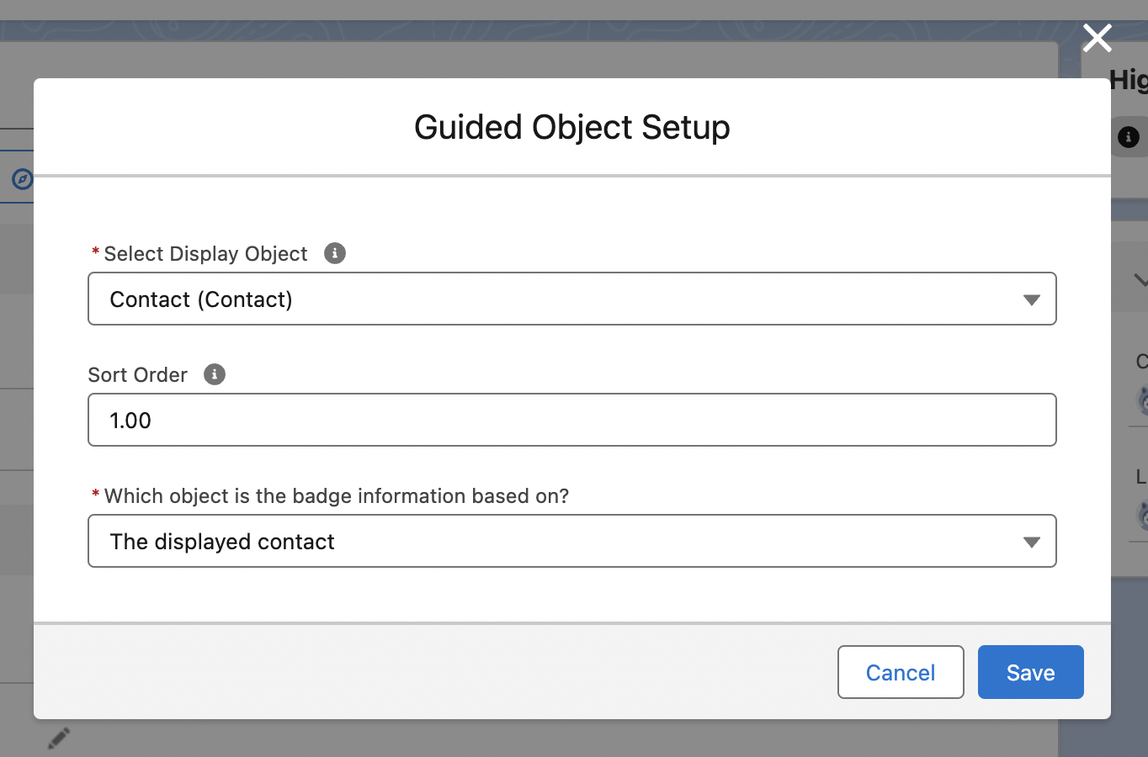
This example shows a simple configuration, where the badge is based on information from the displayed Contact record.
Examples
- On a contact record, show an alert when the contact’s birthday is today.
- A highlight badge shows that the contact’s Email is blank, encouraging the user to collect an email address.
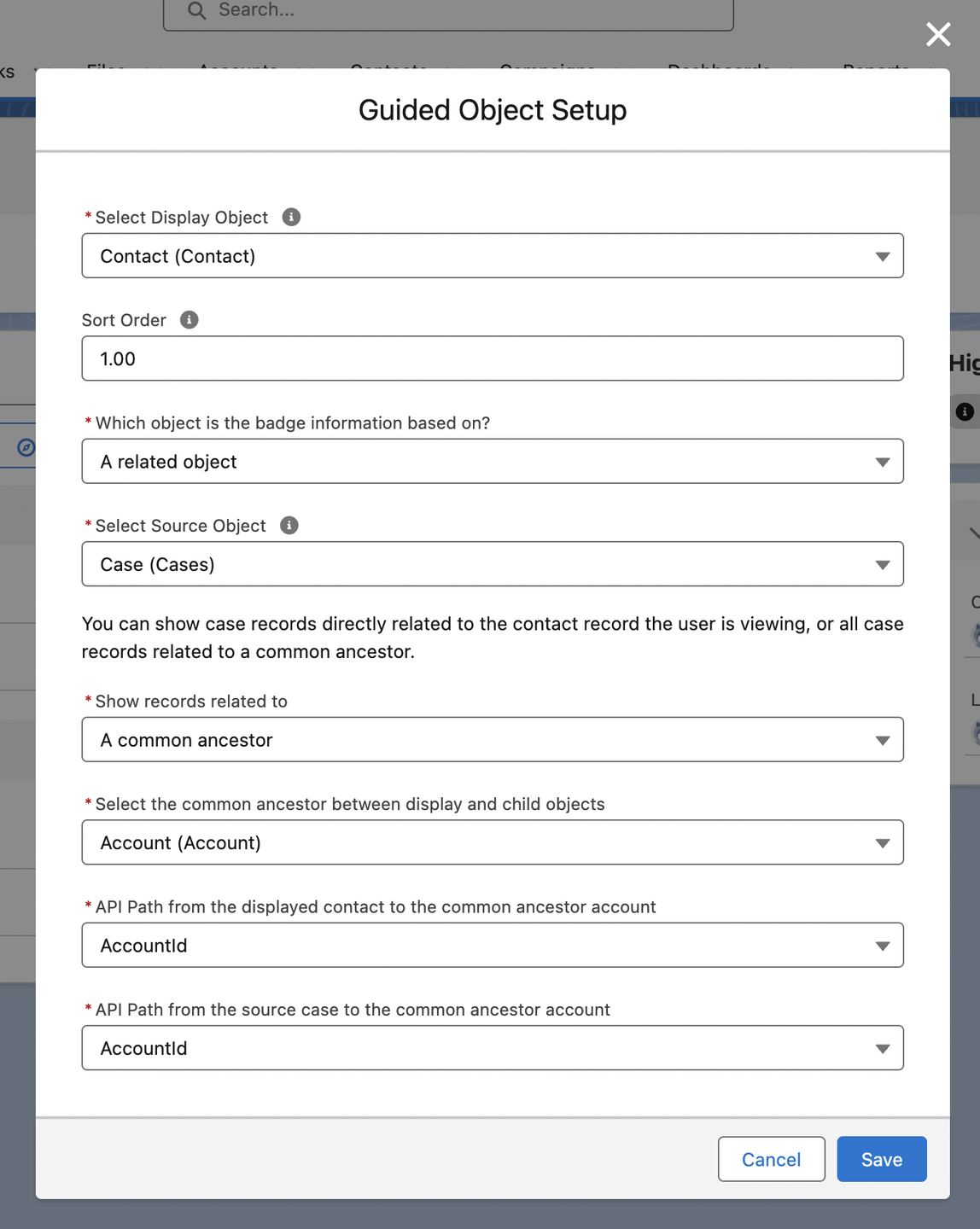
This represents a more complex configuration. In this example, the badge will be displayed on the Contact, but is based on information from a Case record.
The records are related by a common ancestor (the Account), meaning that the badge will show for any Contact in the Account associated with that Case record.
The API Path values store the relationship between these three objects.
Examples
- A highlight badge is displayed for any open cases related to a contact’s parent account.
- If an open case has a Priority of “High”, a toast alert is shown to the user landing on any related contact, allowing quick-navigation to the high priority case.
TIP: The Guided Object Setup wizard supports many common use-cases, but limits the types of object relationships available. For greater flexibility, populate these fields directly in the record page editor. See Advanced configuration.
Criteria
Use the Criteria tab to filter and sort highlight badges. Enter Filter Criteria using syntax supported in the WHERE clause of a SOQL query. The query is based on the Source Object.
In this example, the Source Object is the Case object. The Filter Criteria limits results to only open cases (IsClosed = false).
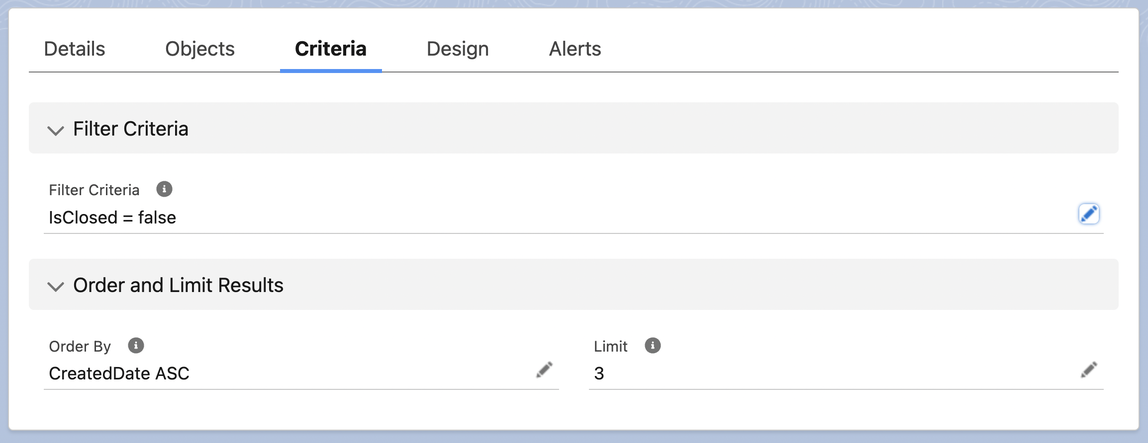
If more than one case is open, the highlight badges are displayed in the order they were created (Order By: CreatedDate ASC), and only the first three cases are displayed (Limit equals 3).
TIP: See Advanced configuration for information on how queries are constructed at runtime. This can help expand the control you have over record/highlight badge inclusion.
Resources
- https://developer.salesforce.com/docs/atlas.en-us.soql_sosl.meta/soql_sosl/sforce_api_calls_soql_select_conditionexpression.htm
- https://developer.salesforce.com/docs/atlas.en-us.soql_sosl.meta/soql_sosl/sforce_api_calls_sosl_where.htm
- https://developer.salesforce.com/docs/atlas.en-us.soql_sosl.meta/soql_sosl/sforce_api_calls_soql_select_comparisonoperators.htm
Design
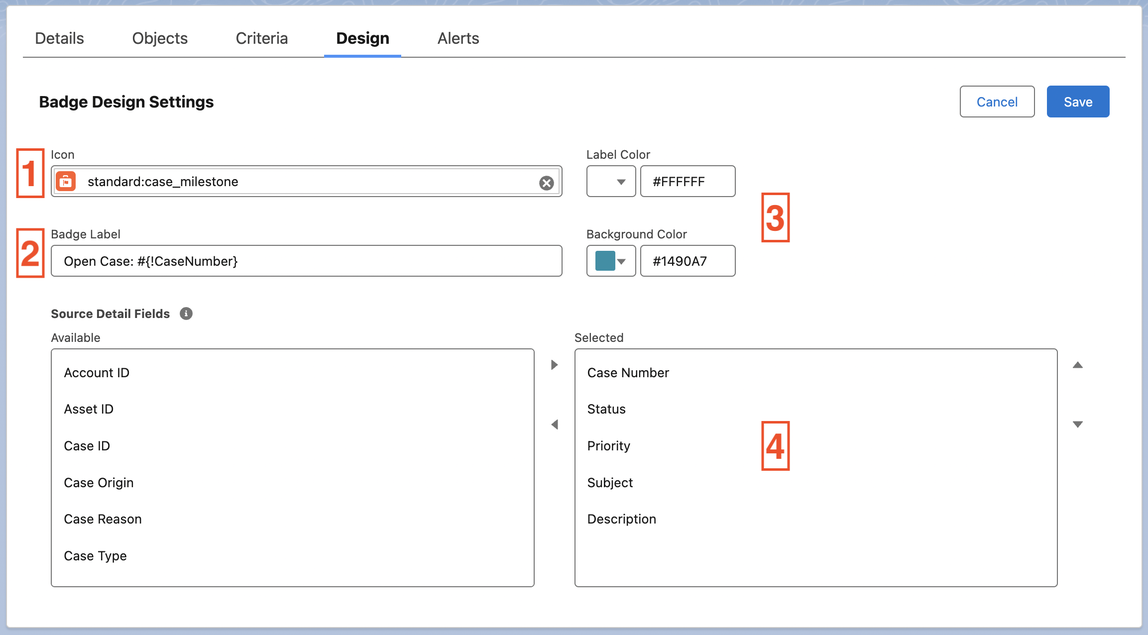
The Design tab offers control over the icon and colors for the highlight badge.
- Select an available Icon from the SLDS library.
- Set the Badge Label. Use {!My_Custom_Field__c} syntax to display merged values from the source object.
- In the example below, the CaseNumber is merged into the label.
- Only field values on the source object are supported.
- Select a Label Color and Background Color.
- Selected Source Detail Fields show up in the More Information modal window when a highlight badge is clicked on.
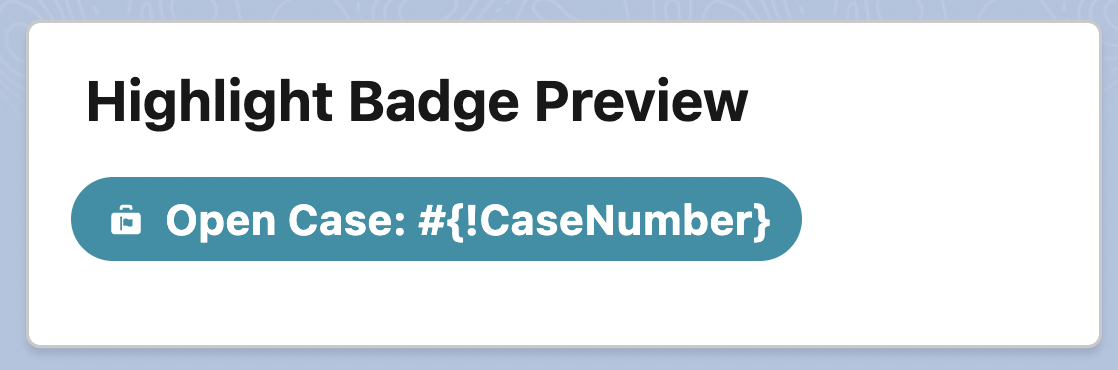
The Highlight Badge Preview provides a preview of what the highlight badge will look like on the Display Object.
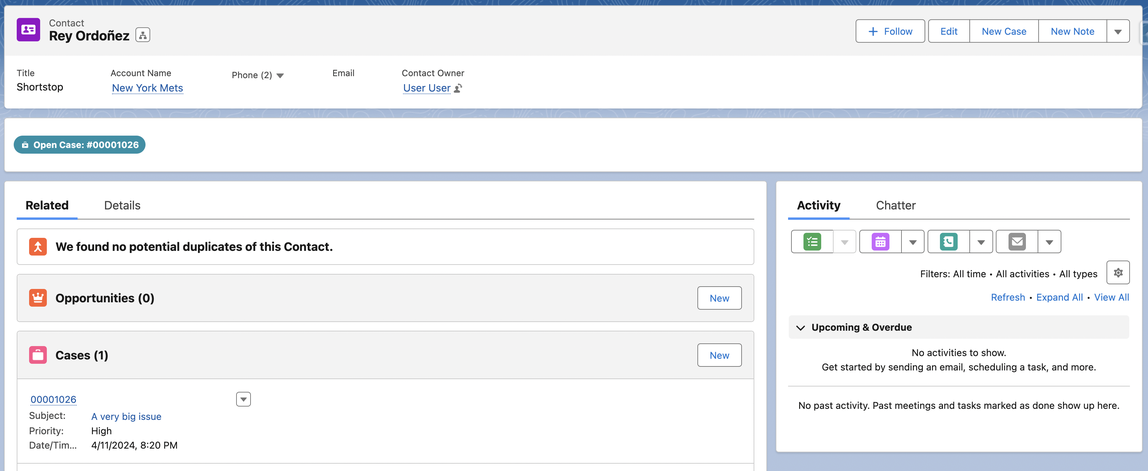
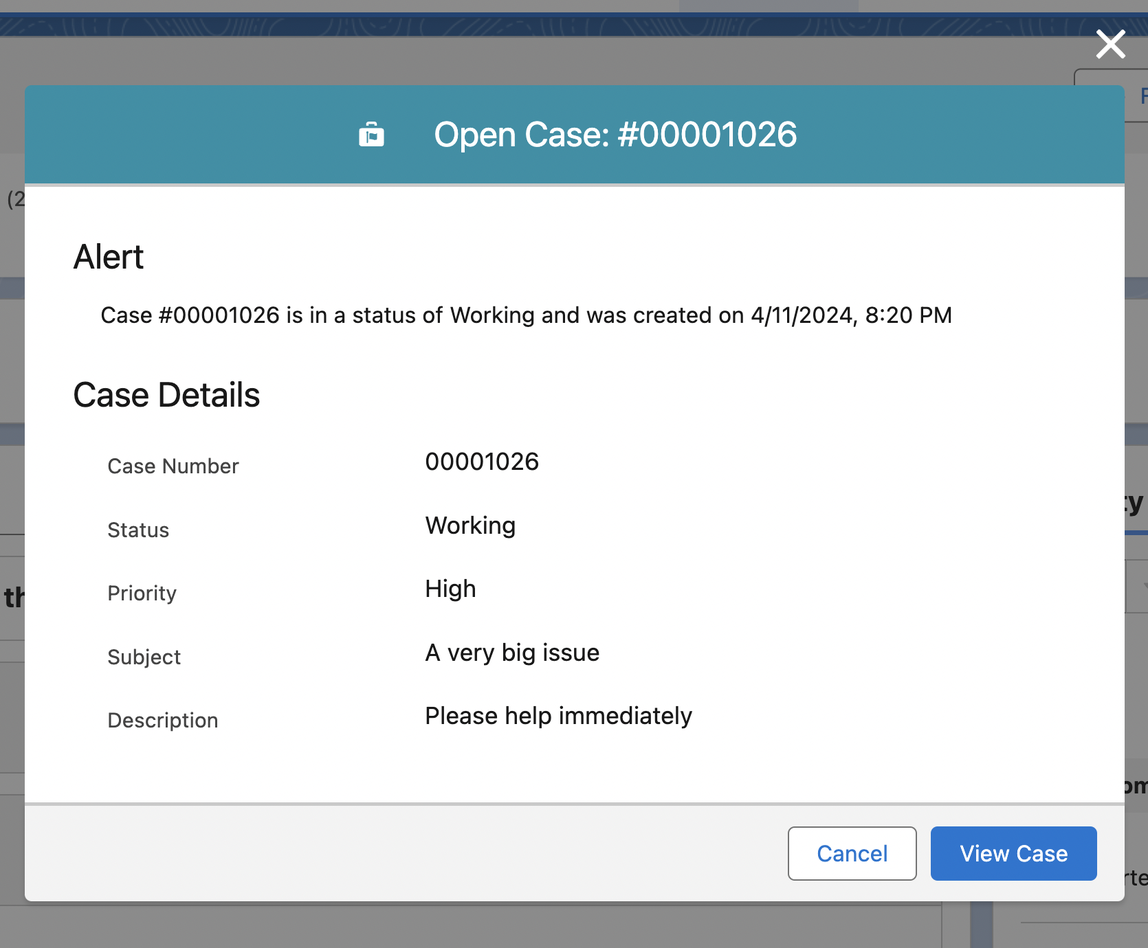
When a highlight badge is clicked, the selected Source Detail Fields the user can read are displayed in a modal window. For a badge in System Mode, a user who cannot read the source record sees a short notice instead.
Alerts
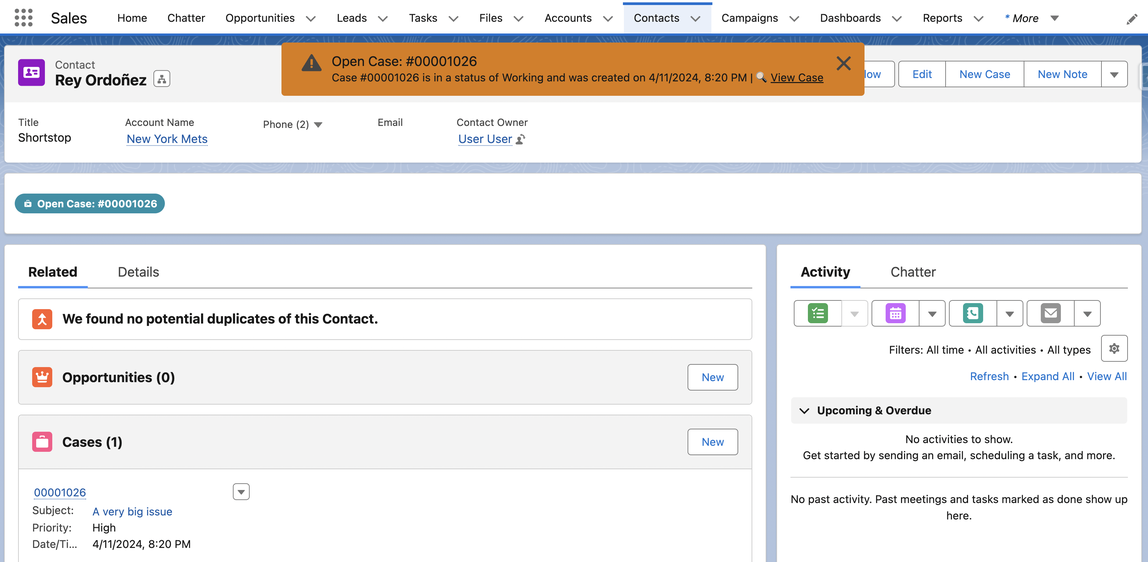
Use the Alerts tab to configure modal or toast alerts for users landing on an eligible record page. In the following example, a warning (orange) toast alert is configured with a few more details than the label provides.
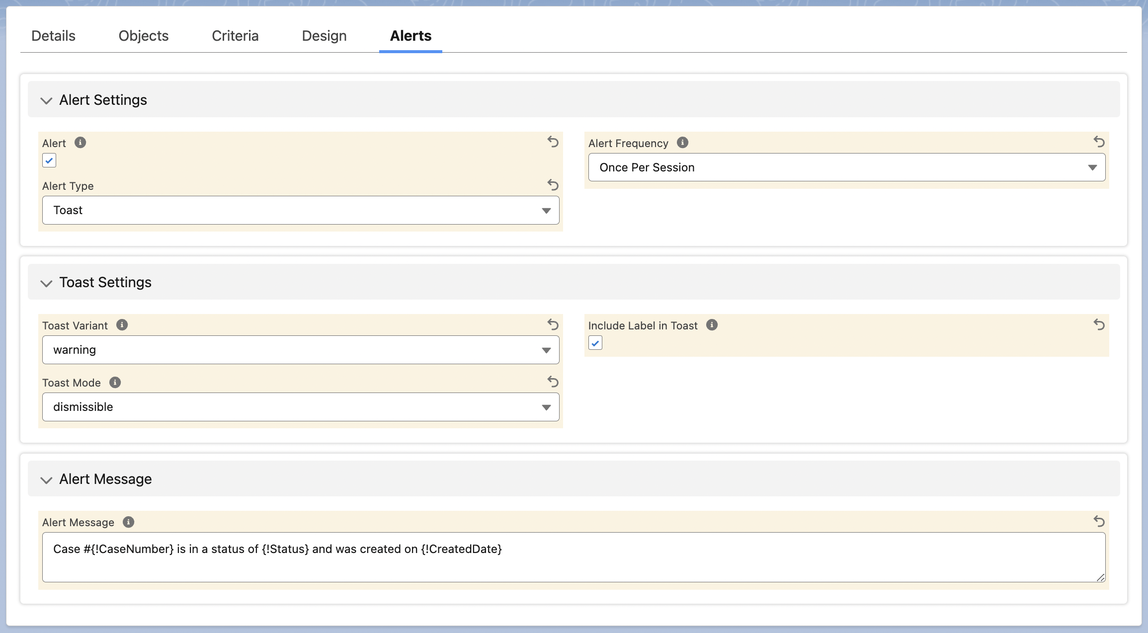
All alerts allow for record navigation to the source record, except for a System Mode badge whose record the user cannot read.
Don’t forget to activate your new Highlight Badge Definition when you’re ready to see it on record pages for the Display Object!
Next steps
- Add actions so users can navigate or run a flow from a badge.
- Preview badges in the context of a real record.
- Advanced configuration for merge fields, bind variables and refreshing badges from Flow.